
MT78 Can be programmed via USB Cable, SMS. This post will show you how to setup your MT78 via the USB Config Tool.
Install SIM Card
- Prepare one Micro 3FF SIM card.
- Insert the SIM card into the slot with the cut corner oriented correctly, with the contacts facing up.
Power ON
After installing the SIM card, press the power button twice to turn on the device.
The MT78 will power on automatically, and the blue LED will light up.
Download Config Tool
- Click hereto download the “MT78_Config_Tool_User_Guide” to your PC;
- Unzip all of them to the same folder;
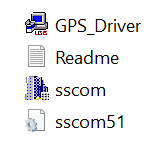
Install GPS Driver
- Click the “GPS Driver” and install it.
Connect to Tracker
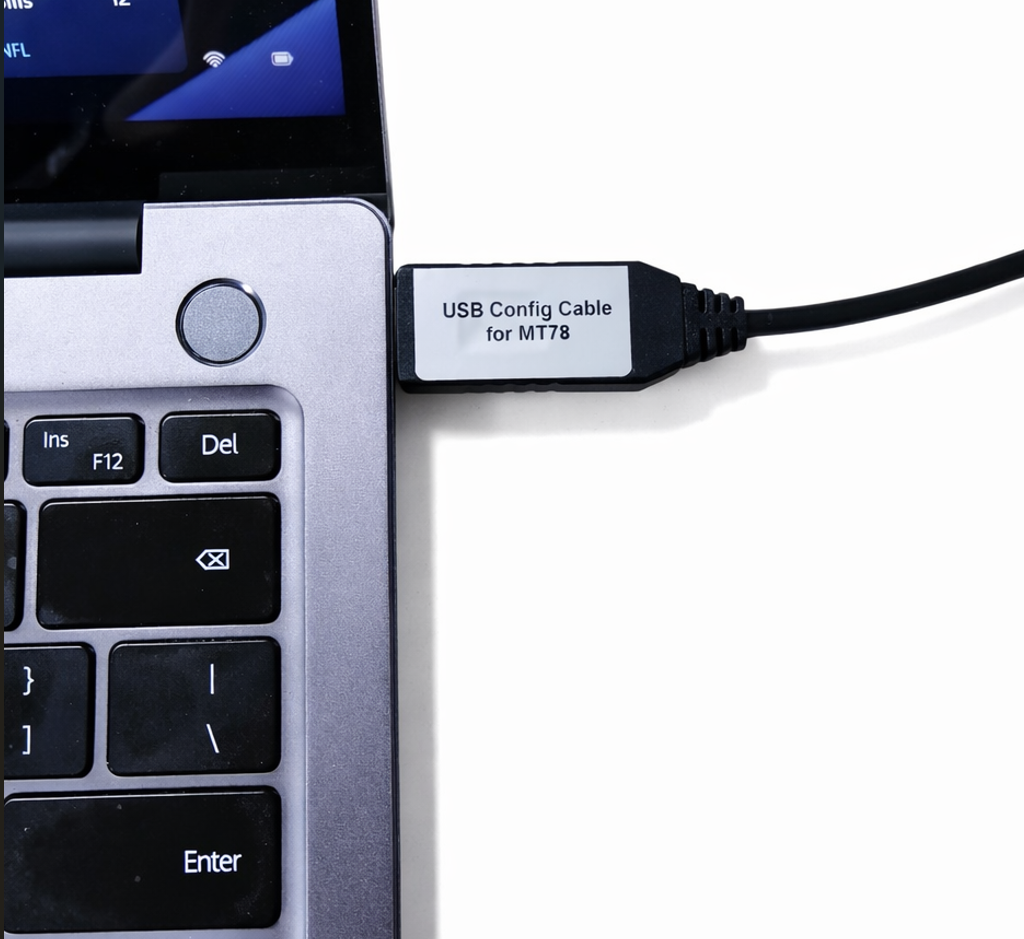
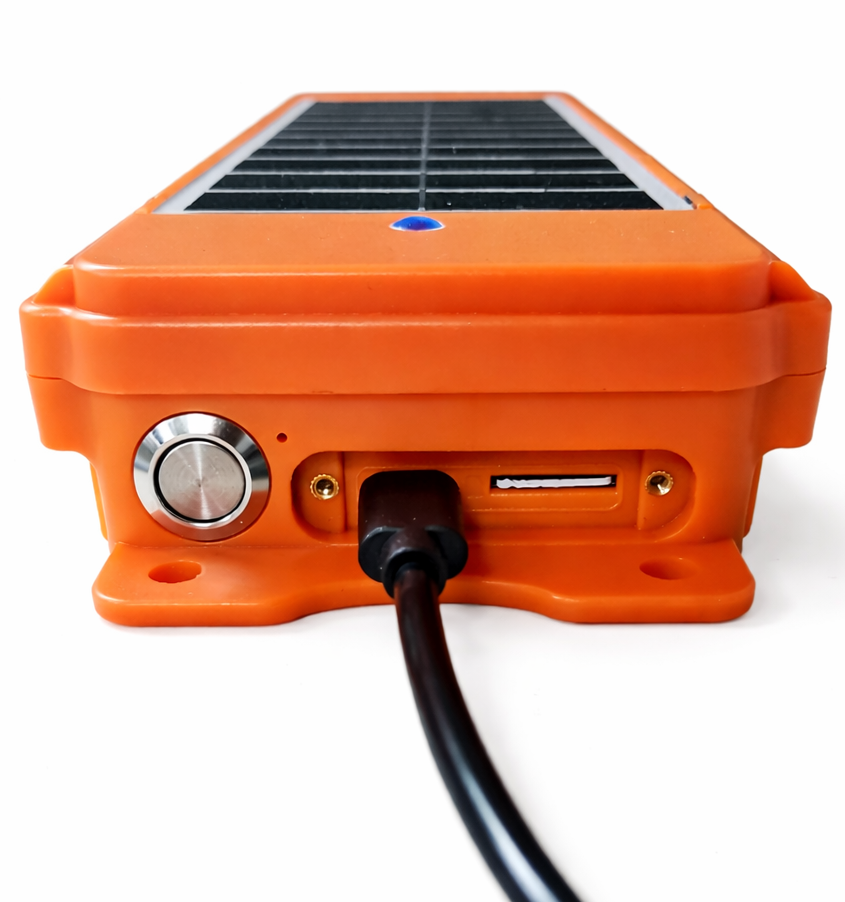
- Connect the USB Config Cable (NOT USB Charging Cable)between the PC and MT78
Check Com Port
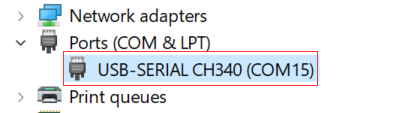
You can open Device Manager (press the Windows button then type ‘device’).
- Right-click the “Windows Start” ;
- Select the “Device Manager”;
- Click “Port (COM & LPT) and confirm Port number (“USB-SERIAL CH340 (COM15)“
SSCOM tool
- Open “sscom” tool
- Select the Comm Port number that shows on “Port (COM & LPT)” (step 1)
- Choose the BaudRate 115200 (step 2)
- Click “OpenCom” (step 3 in picture)
- Click “EXT” (step 4 in the picture)
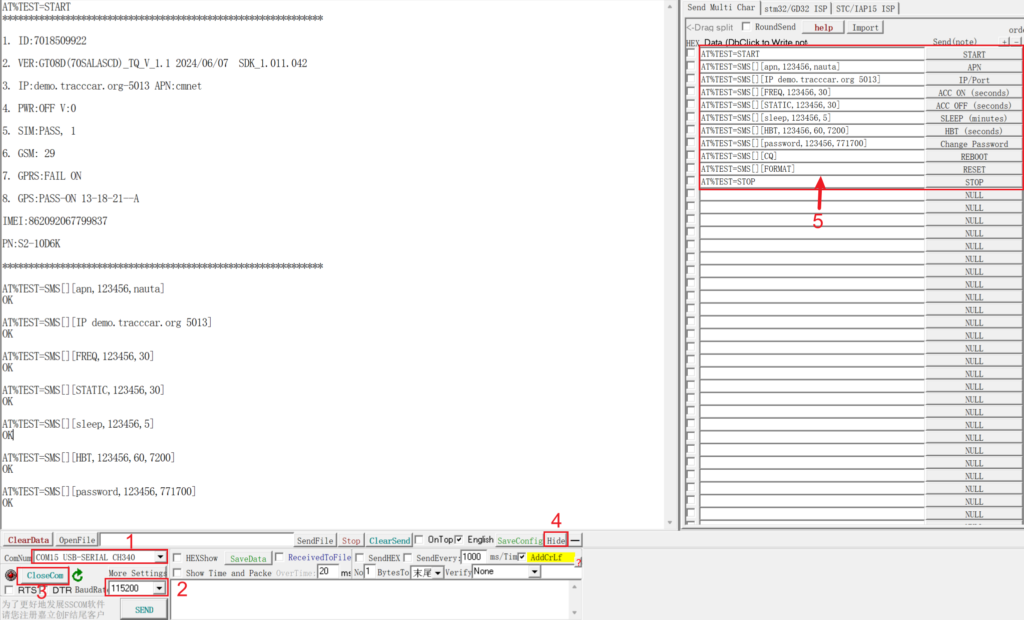
Send Commands to Tracker
Now you can send the commands to GPS Tracker MT78.
- Click “START” comamnd it will show the config info
- Input the correct SIM Card APN and then click “APN”
- Input the IP and Port and then click “IP/Port” etc.
- In put the ACC ON/OFF report interval time
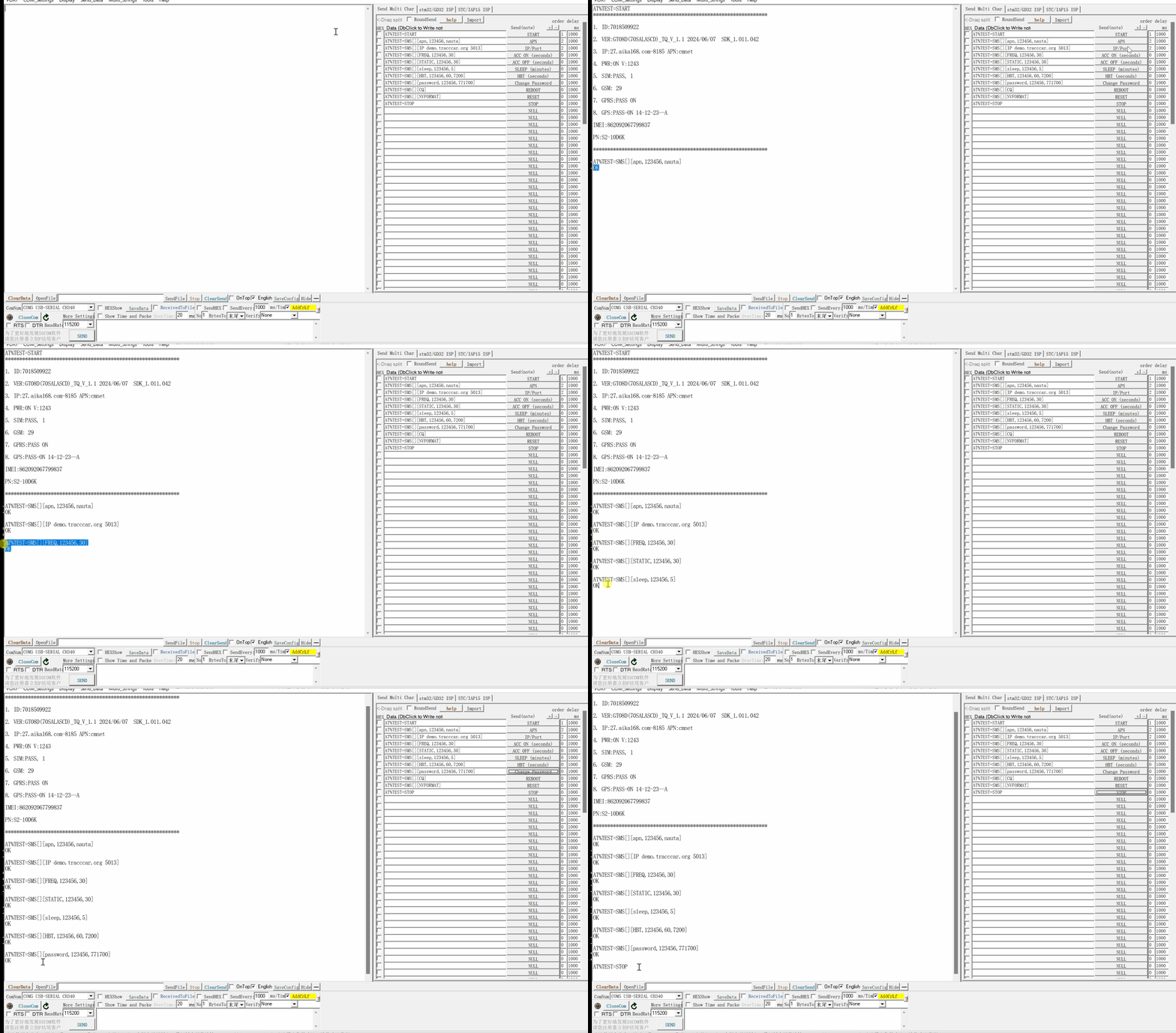
Commands List
| Item | Command format | Example | Reply |
|---|---|---|---|
| Start | AT%TEST=START | AT%TEST=START | OK |
| APN | AT%TEST=SMS[][apn,123456,cmnet] | AT%TEST=SMS[][apn,123456,cmnet] | OK |
| IP/Port | AT%TEST=SMS[][IP demo.tracccar.org 5013] | AT%TEST=SMS[][IP demo.tracccar.org 5013] | OK |
| ACC ON | AT%TEST=SMS[][FREQ,123456,30] | AT%TEST=SMS[][FREQ,123456,30] | OK |
| ACC OFF | AT%TEST=SMS[][STATIC,123456,30] | AT%TEST=SMS[][STATIC,123456,30] | ,OK |
| Sleep | AT%TEST=SMS[][sleep,123456,5] | AT%TEST=SMS[][sleep,123456,5] | OK |
| Heartbeat | AT%TEST=SMS[][HBT,123456,60,7200] | AT%TEST=SMS[][HBT,123456,60,7200] | OK |
| Change password | AT%TEST=SMS[][password,123456,771700] | AT%TEST=SMS[][password,123456,771700] | OK |
| Reboot | AT%TEST=SMS[][CQ] | AT%TEST=SMS[][CQ] | OK |
| Reset | AT%TEST=SMS[][NVFORMAT] | AT%TEST=SMS[][NVFORMAT] | OK |
| Exit | AT%TEST=STOP | AT%TEST=STOP | OK |
FAQ
I can’t find the com port number on sscom tool, what happens?
Make sure the “GPS Driver” is installed on your PC. If installed and then check if connect the tracker with the USB Config cable and NOT the Charging cable.
Why do I get the alert “USB Device not recognized”?
If get the alert when you connect the USB cable to the PC, please check if you use the MT78 Config cable (this is the customized cable not standard)
The MT78 ONLY works with the Config cable.
The MT78 ONLY works with the Config cable.
The USB Config cable is connected and tries to send the command but no response?
Maybe the battery is low pls check if the LED is light.
How do I query the current setting?
There are two ways to check the settings:
1. SMS command: CXZT
2. USB command: AT%TEST=START
1. SMS command: CXZT
2. USB command: AT%TEST=START