
Applies to: MT700, MT700L, MT710, and MT710L series. The steps are the same for all four series.
When your tracker is running in Mode 7 (e.g., MODE,7,10,24), it conserves battery by entering deep sleep when stationary. However, if you need high-frequency tracking—with updates as often as every 10 seconds—for a short period (such as during vehicle recovery or live monitoring) without permanently changing your power-saving configuration, you can use LOCK MODE.
LOCK MODE works from any working mode. It temporarily switches the tracker to high-frequency reporting and automatically restores your previous working mode once the configured duration expires. This guide uses Mode 7 as an example.
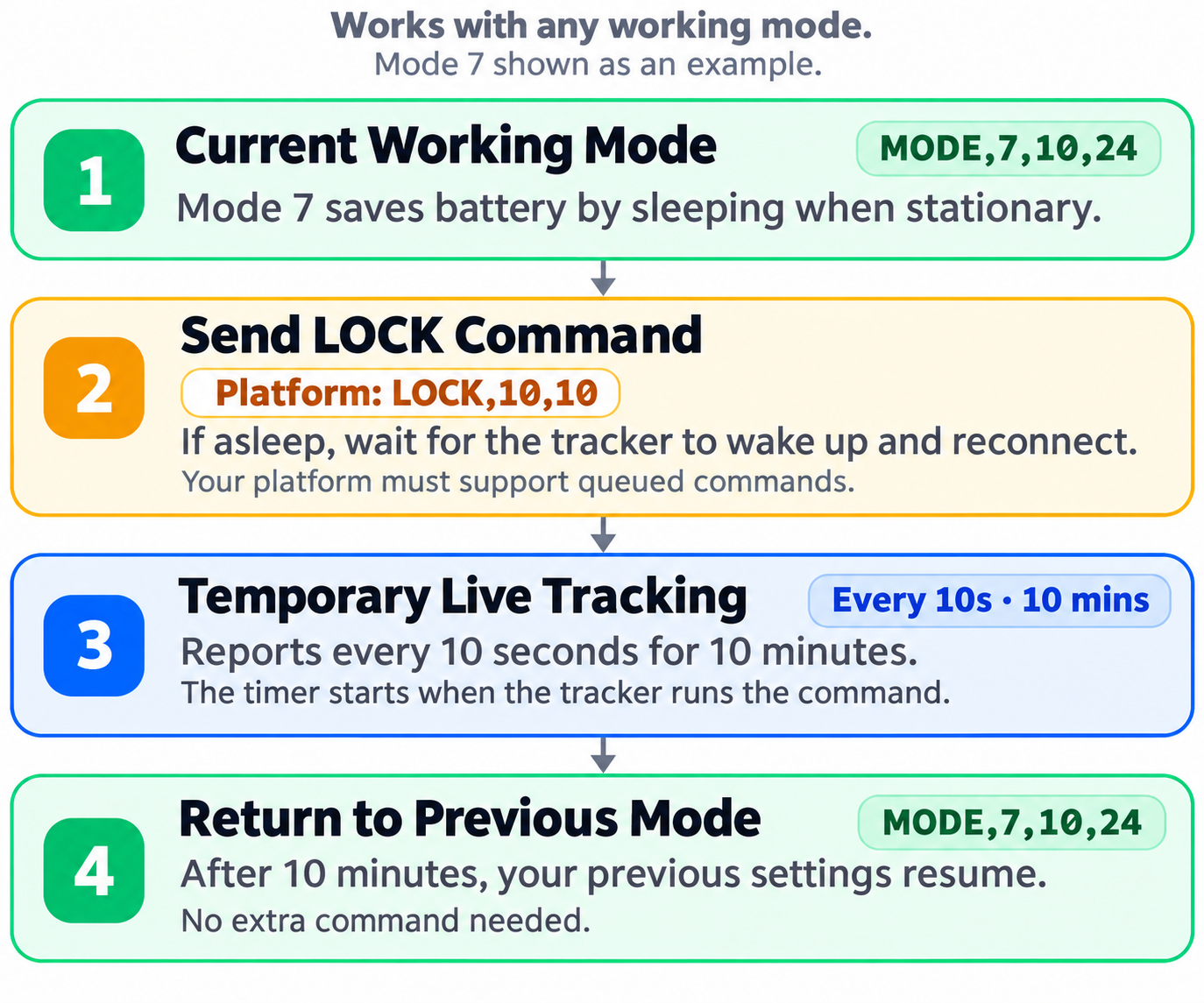
Workflow Overview
- Current modeMode 7 in this example.
- Send the command
LOCK,10,10 - Track every 10 secondsFor 10 minutes.
- Back to your previous modeAutomatically. No extra command.
Tracker asleep? The command waits until it wakes up and reconnects. Your platform must support queued commands.
When does the timer start? When the tracker receives and runs the command.
Step 1: Understand Your Current Mode (MODE,7,10,24)
Before triggering LOCK MODE, here is how MODE,7,10,24 normally operates:
- Wake-Up on Motion: When vibration or movement is detected, the tracker wakes up and reports a
SHAKEevent. Please note that connecting to the cellular network and acquiring a valid location fix may take some time after wake-up. - Vehicle in Motion: While moving, the device reports its location every 10 minutes (
TOWEDevent). - Vehicle Stops & Deep Sleep: When the tracker detects that it is stationary, it sends a
STILLevent and enters deep sleep according to its motion-detection and sleep logic. - Stationary Periodic Report (
HT): While stationary, the device wakes up every 24 hours to send anHTlocation report (positioning priority:GPS > WiFi > LBS, when WiFi and LBS are enabled).
Step 2: Send the LOCK Command via Platform
To get 10-second updates for 10 minutes, send this command from your tracking platform:
- Command Format:
LOCK,T1,T2— no password required. - Example:
LOCK,10,10
Parameter Reference
T1(Reporting Interval):10–60seconds (e.g.,10= updates as often as every 10 seconds).T2(Active Duration):1–60minutes (e.g.,10= 10 minutes).- Battery & Data Note: High-frequency tracking during LOCK MODE increases both battery consumption and mobile data usage.
How Platform Delivery Works While Sleeping
Because the tracker disconnects from the network during Mode 7 deep sleep, a platform cannot push commands to a sleeping device instantly, and a queued command itself cannot wake up the tracker.
To deliver commands to a sleeping Mode 7 device, your tracking platform must support the Pre-Saved (Queued) Command Mechanism (see: How to Remotely Change the Working Mode of Your GPS Tracker):
- Queue on Server: You send
LOCK,10,10on the platform. While the device is asleep, the server stores the command in its queue. - Device Wakes Up & Reconnects: The device later wakes up on its own—either from motion/vibration (
SHAKE) or its scheduledHTlocation report—and establishes a connection to the server. - Server Sends Command on Reconnect: Once the device reconnects, the server should push the queued command as soon as possible (recommended within 30 seconds).
Waiting Time & Moving Devices: If the tracker remains stationary, a queued command may wait until the next scheduled wake-up—potentially close to 24 hours in this example, or longer if the tracker cannot reconnect. If an active network connection is already available when you send the command, the platform may deliver it immediately; otherwise, delivery waits until the next successful connection.
Step 3: Verify Execution, Track Live, and Auto-Recover
- Confirm Command Execution (Do Not Rely on “Queued” Status Alone):
A platform status showing “Queued” only means the command is waiting on the server—it does not mean the device has received or started LOCK MODE. To confirm execution:
- Check for a device acknowledgment response (if your platform displays raw device responses, look for
#IMEI#REPLY#LOCK,OK##). - Check that subsequent reports are marked
LOCK, where shown by your platform. Updates should follow the configured reporting interval, although network conditions may delay their arrival.
- Check for a device acknowledgment response (if your platform displays raw device responses, look for
- Timer Starts Upon Execution:
The 10-minute (
T2) countdown starts when the device receives and executes theLOCKcommand—time spent waiting in the platform queue while asleep is not counted towardT2. - Automatic Recovery to Previous Working Mode:
Once
T2expires, the tracker automatically exits LOCK MODE, restores its previously savedMODE,7,10,24configuration, and resumes normal motion detection and sleep logic.
Quick FAQ
Does LOCK MODE only work with Mode 7?
No. LOCK MODE works from any working mode and automatically returns to that mode when the timer ends. The tracker must receive the command first; if it is asleep, the platform command waits until it wakes up and reconnects.
- Will LOCK MODE overwrite my saved Mode 7 settings?
No. LOCK MODE is temporary. Your previously savedMODE,7,10,24configuration remains intact and is automatically restored afterT2expires. - Can I set a longer real-time tracking window?
Yes,T2supports up to 60 minutes (e.g.,LOCK,10,60via platform for updates as often as every 10 seconds for 1 hour). Keep in mind that longer durations consume more battery and cellular data.